<?xml version="1.0" encoding="utf-8"?>
<feed xmlns="http://www.w3.org/2005/Atom">

  <title><![CDATA[Phant0mas' Place]]></title>
  <link href="http://www.manolisragkousis.com/atom.xml" rel="self"/>
  <link href="http://www.manolisragkousis.com/"/>
  <updated>2017-08-31T14:55:27+03:00</updated>
  <id>http://www.manolisragkousis.com/</id>
  <author>
    <name><![CDATA[Manolis Ragkousis]]></name>
    
  </author>
  <generator uri="http://octopress.org/">Octopress</generator>

  
  <entry>
    <title type="html"><![CDATA[My August Hacking Update]]></title>
    <link href="http://www.manolisragkousis.com/blog/2017/08/30/august-hacking-update/"/>
    <updated>2017-08-30T14:00:25+03:00</updated>
    <id>http://www.manolisragkousis.com/blog/2017/08/30/august-hacking-update</id>
    <content type="html"><![CDATA[<h2>August out!</h2>

<p>August is almost over. The same could be said for the summer, but I am in Greece.
I will probably still be using A/C at least until November :P. The first
half of the month was really productive, but then I removed two of my wisdom teeth
and I had to take it easy. Anyhow let&rsquo;s see what I got done.</p>

<h2>My work on Guix</h2>

<figure class='code'><figcaption><span>Guix master </span></figcaption><div class="highlight"><table><tr><td class="gutter"><pre class="line-numbers"><span class='line-number'>1</span>
<span class='line-number'>2</span>
<span class='line-number'>3</span>
<span class='line-number'>4</span>
<span class='line-number'>5</span>
<span class='line-number'>6</span>
<span class='line-number'>7</span>
<span class='line-number'>8</span>
</pre></td><td class='code'><pre><code class='bash'><span class='line'><span class="nv">$ </span>git log --since<span class="o">=</span><span class="s2">&quot;last month&quot;</span> --author<span class="o">=</span>Manolis  --pretty<span class="o">=</span><span class="s1">&#39;format:%h %cd %s&#39;</span> --date<span class="o">=</span>format:<span class="s1">&#39;%Y-%m-%d&#39;</span> --reverse
</span><span class='line'>9ef5940ce 2017-08-02 gnu: calibre: Add python2-msgpack as an input.
</span><span class='line'>5638d7150 2017-08-03 gnu: openscenegraph: Add <span class="s1">&#39;Release&#39;</span> configure flag.
</span><span class='line'>c608fe8cf 2017-08-09 gnu: Add ois.
</span><span class='line'>2d5bf32b8 2017-08-09 gnu: googletest: Build shared libraries.
</span><span class='line'>dd75a9a22 2017-08-17 gnu: Add ogre.
</span><span class='line'>42d0d13de 2017-08-17 gnu: Add mygui.
</span><span class='line'>e9a599cdc 2017-08-17 gnu: Add OpenMW.
</span></code></pre></td></tr></table></div></figure>


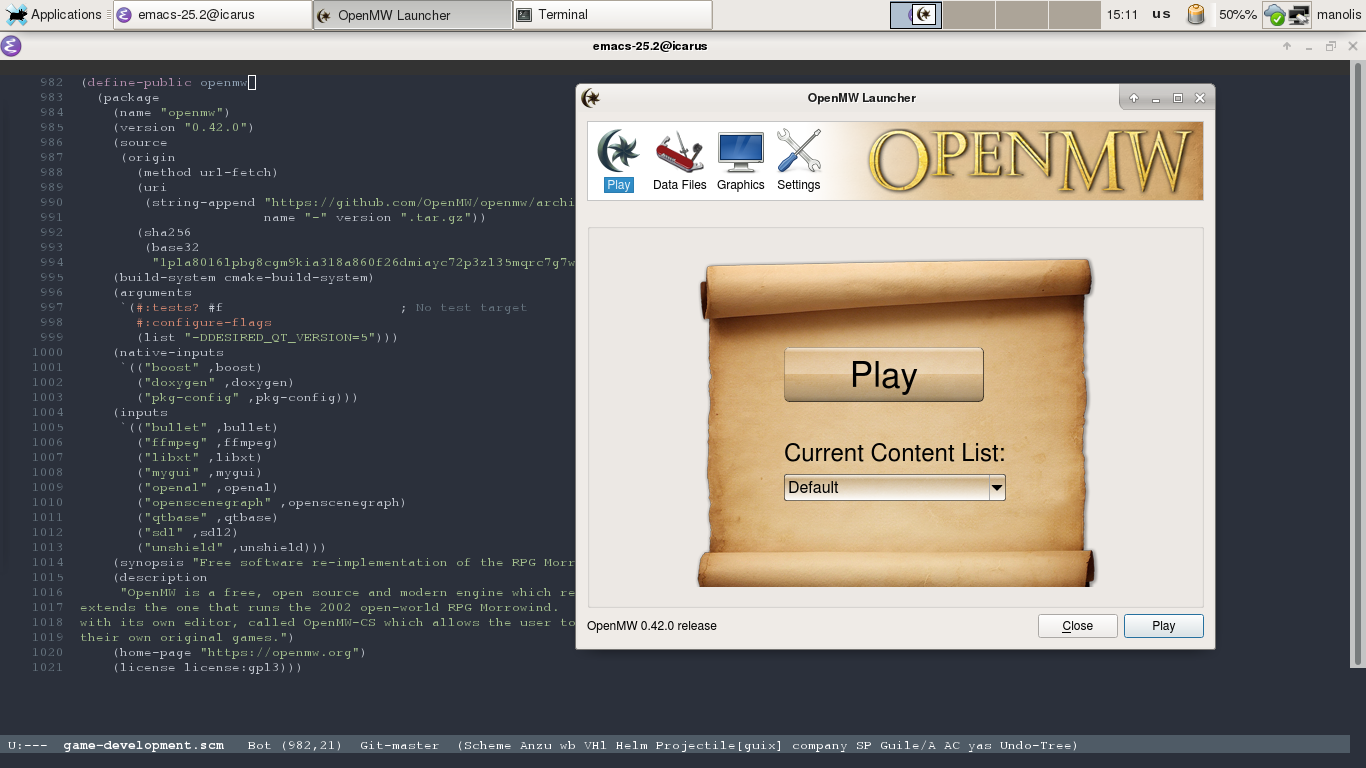
<p>While I thought packaging OpenMW would take me longer, I managed to track the dependencies,
package them, and make the tests work with some serious two week work.</p>

<p><img src="images/openmw-screenshot.png" title="'OpenMW on GuixSD'" ></p>

<p>Let&rsquo;s say now that you are thinking about contributing to OpenMW, and you are also using
Guix (or GuixSD). Here is how you can setup your environment, fast:</p>

<figure class='code'><figcaption><span>OpenMW Environment</span></figcaption><div class="highlight"><table><tr><td class="gutter"><pre class="line-numbers"><span class='line-number'>1</span>
<span class='line-number'>2</span>
<span class='line-number'>3</span>
<span class='line-number'>4</span>
</pre></td><td class='code'><pre><code class='bash'><span class='line'>manolis@prometheus ~/repos/openmw <span class="nv">$ </span>guix environment openmw  --pure
</span><span class='line'>substitute: updating list of substitutes from <span class="s1">&#39;https://mirror.hydra.gnu.org&#39;</span>... 100.0%
</span><span class='line'>manolis@prometheus ~/repos/openmw <span class="o">[</span>env<span class="o">]</span><span class="err">$</span>
</span></code></pre></td></tr></table></div></figure>


<p>And just like that you have an environment with all the openmw dependencies and
you are ready to start hacking.</p>

<h2>Smart Home Project</h2>

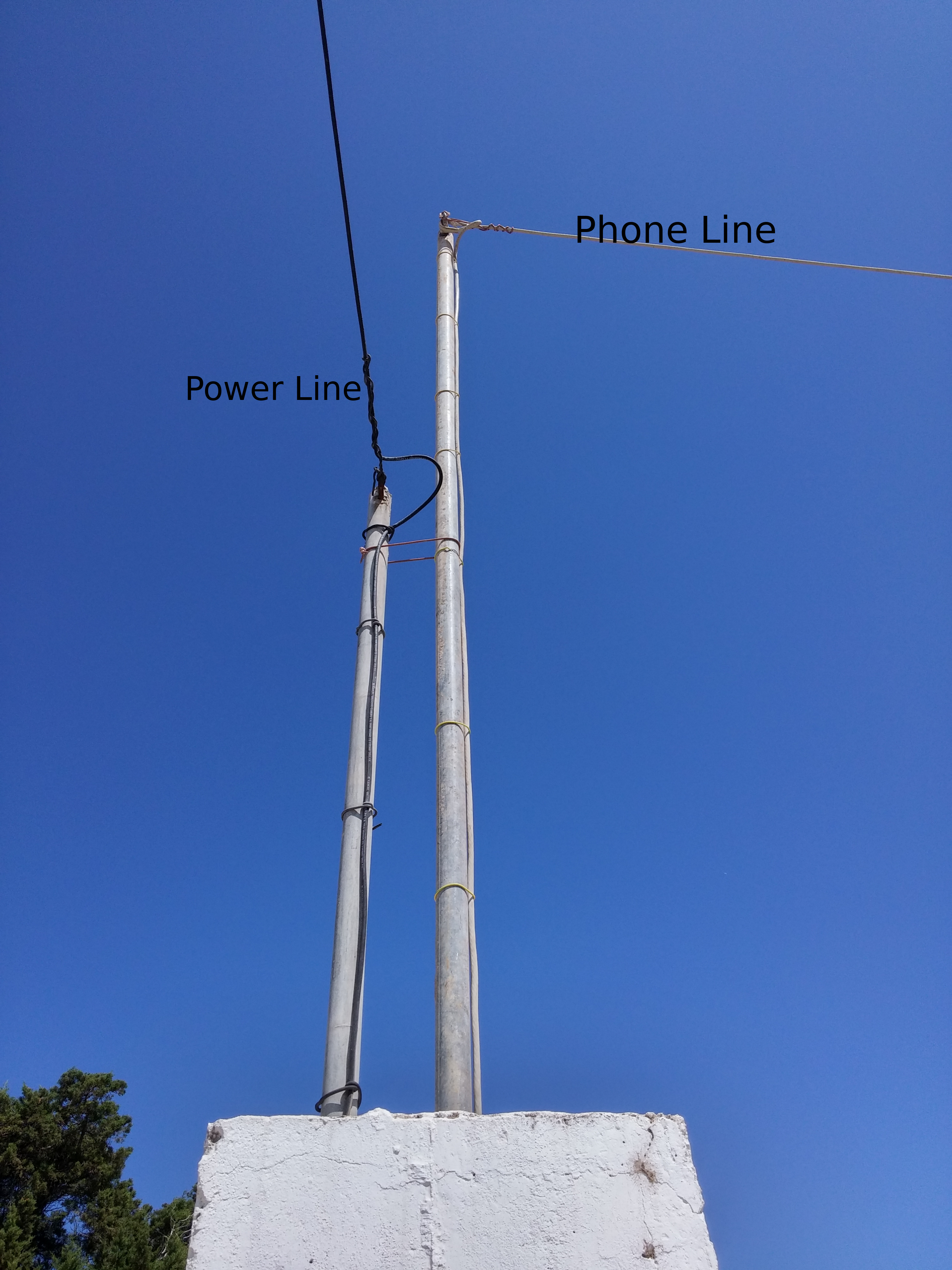
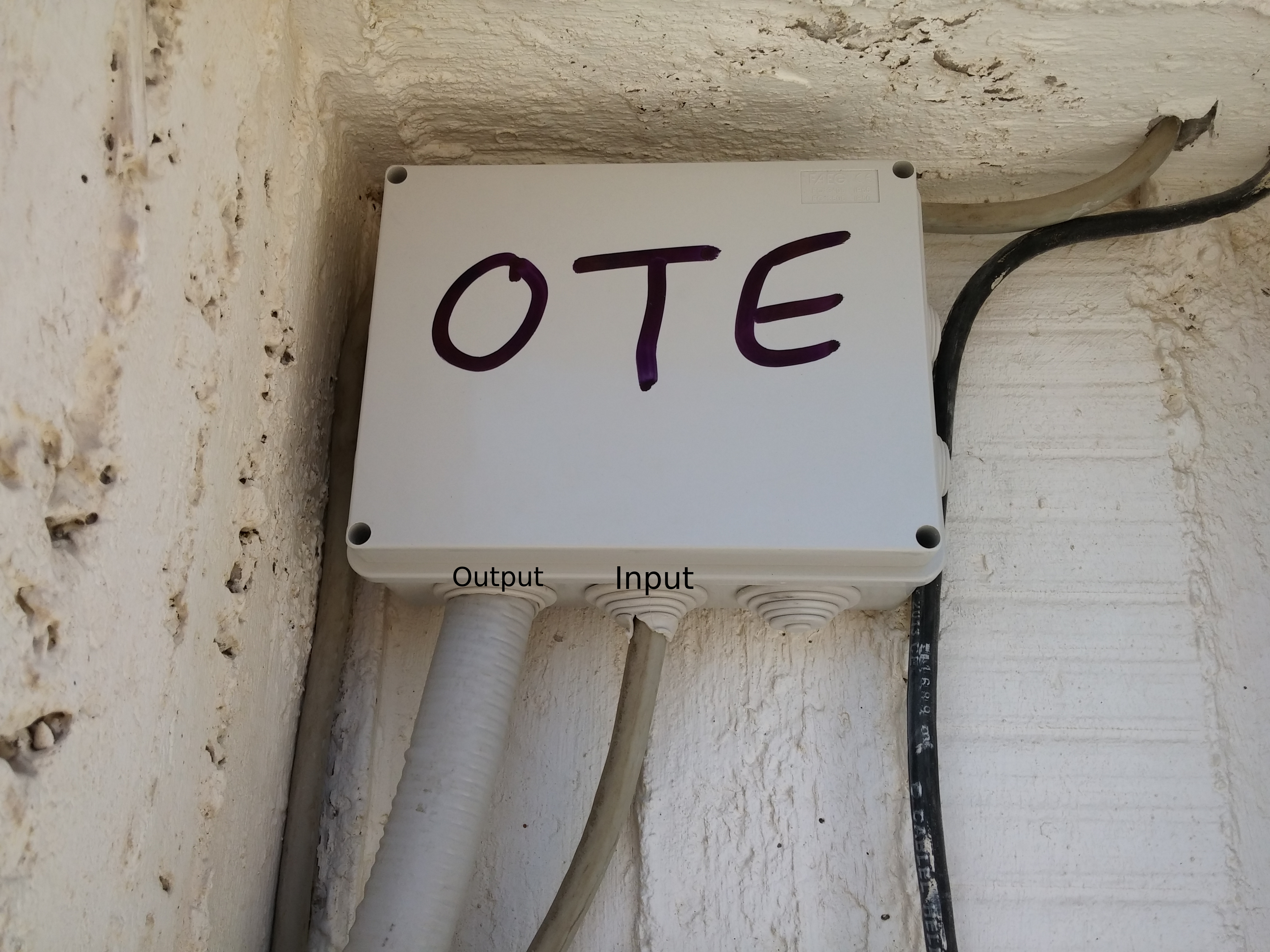
<p>The home project is moving forward. The windows will probably arrive next week
(they are currently being painted.) and today I connected the new cat6
underground lines to the phone company&rsquo;s (OTE) cables. It was a miracle how the
old cables were still working, as they were in a miserable condition.
I think the result speaks for itself.</p>

<p><img src="images/2017-08-31_12.01.11.jpg" title="'Phone cables 1'" ></p>

<p><img src="images/2017-08-31_12.02.04.jpg" title="'Phone cables 2'" ></p>

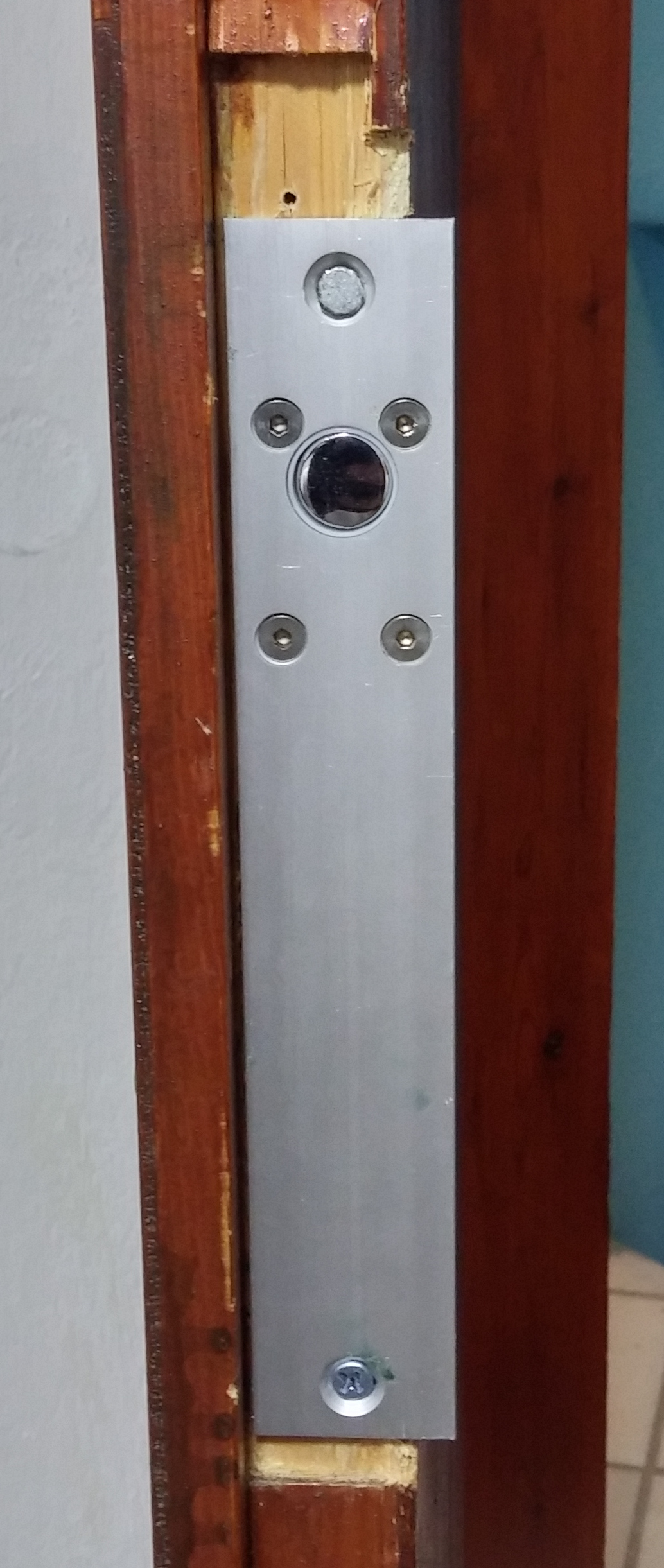
<p>I also started working on the hardware for the smart locks. I experimented a
bit on my room&rsquo;s door and this is the prototype.</p>

<p><img src="images/2017-08-30_20.43.06.jpg" title="'Electric Door'" ></p>

<p>I am using an Arduino and a mosfet to drive the 12V electric lock. I am also
planing to install a cover with a keypad on the outside of the door. Mainly
as a way to open the door in case I forget my phone and to cover the missing
parts of the door :P.</p>

<h2>Reading Books</h2>

<p>There are some books that every CS student should read in order to call himself
one. One of those is &ldquo;Structure and Interpretation of Computer Programs&rdquo; or SICP
for short. This book has enough material to teach you more than most students
learn in Greek universities in 4 years time. And I finally got my hands on a
hard copy!!</p>

<h2>September is coming</h2>

<p>In the first 10 days of September I expect to install the new windows/doors in
the house so I can finally get the new home network online. I will then be able
to start activating the smart home mechanisms and show everyone what I have in mind.
I also definitely hope that September will finally be the month I get to finish
my thesis text and defend it. We will see how it will go.</p>

<p>Manolis out.</p>
]]></content>
  </entry>
  
  <entry>
    <title type="html"><![CDATA[My Hacking Adventures.]]></title>
    <link href="http://www.manolisragkousis.com/blog/2017/07/29/hacking-adventures/"/>
    <updated>2017-07-29T12:20:08+03:00</updated>
    <id>http://www.manolisragkousis.com/blog/2017/07/29/hacking-adventures</id>
    <content type="html"><![CDATA[<h2>Long time no see</h2>

<p>It&rsquo;s been a long time since I last updated this blog. Between my
studies, the last two GSoCs I was a part of and my personal life I had
little time to spend on this blog. Now this will change. With this post
I will tell you a little about some of the things I am working on and
some goals I have in mind.</p>

<p>I hope that by the end of this post my mind will be better organized and get more productive!</p>

<h2>My work on Guix and Hurd</h2>

<p>Two years ago I announced that <a href="https://lists.gnu.org/archive/html/guix-devel/2015-08/msg00379.html">I successfully ported GNU Guix to GNU Hurd</a>.
But that didn&rsquo;t mean that everything was done. During GSoC 2016 I started
working on creating a Hurd based GuixSD system. Unfortunately the time
frame was not enough and
<a href="https://lists.gnu.org/archive/html/guix-devel/2016-08/msg01002.html">it needed more work</a>.
But I have continued working on it and hopefully
I will be able to deliver a working image soon. I also have help from a fellow hacker
called Rene, and which I am really thankful.</p>

<p>I try to push all of my work
to the upstream Guix repo, but sometimes my code doesn&rsquo;t meet the standards.
As a result the day to day hacking happens in <a href="https://github.com/Phant0mas/Guix-on-Hurd">a github repo</a>.</p>

<p>I will write another post on how to use that repo to actually try Guix on Hurd yourself.</p>

<h4>Things that work:</h4>

<ul>
<li>Guix can cross-build or build natively most of the packages needed
for a GNU system and others.</li>
</ul>


<h4>Things I need to finish:</h4>

<ul>
<li>There is a library I wrote for the Hurd called <a href="https://github.com/Phant0mas/Hurd/commit/3501ee22ad4150b3b2cf9a386d2350b9a68aecd8">libhurdutil</a> which I need
to clean and finally push to Hurd.</li>
<li>Use the library above to finish implementing build isolation
in the Guix daemon while on Hurd.</li>
<li>Fix the packages that cannot be build but are needed for a GNU system.</li>
</ul>


<h2>My work on Guix (but not Hurd :P)</h2>

<p>I am using Guix in my everyday life a lot! This mean I had to add a couple of
packages, not related to Hurd, in the span of these last 4 years .</p>

<h4>Currently I need to finish:</h4>

<ul>
<li>The GNU Radio package.</li>
<li>The Open MW package. (I have already packaged its dependencies)</li>
</ul>


<h2>My thesis on L4/Fiasco</h2>

<p>The purpose of this thesis is to offer isolation between processes,
where a process can be a simple app that read from a sensor to a fully fledged Linux system.
And all this on top of a zynq board, called zedboard, which is an FPGA + arm CPU.
The plan is to control which process access what hardware. While running on the same system.
And did I mention Fiasco is a microkernel? It sounded cool to me!</p>

<p>While the thesis did have some setbacks, which I will talk in another post,
it has advanced enough to think that I will be able to defend it sometime
in September.</p>

<h4>Currently I need to:</h4>

<ul>
<li>Solve issues with accessing time controllers from inside the processes.</li>
<li>Write the thesis text.</li>
</ul>


<p>In a future post I will get into the inner working of my thesis. Until
then if you are not aware of L4/Fiasco please visit <a href="https://os.inf.tu-dresden.de/fiasco/">here</a>.</p>

<h2>My smart home project</h2>

<p>A year go I was given the opportunity to finish the unfinished building which is directly
upstairs from the one I am now. Suddenly the idea came. Why not automate as much as I can!?
Create a house which will learn its occupants. Design everything from scratch. And I started.</p>

<p>For the sake of not making the post longer than it is now, I will redirect you to my twitter
feed and <a href="https://twitter.com/phant0mas_/status/793166019976192000">my conversations with David Thompson</a>.
In the near future I will add a post which I will get into the details of the house.</p>

<h2>This blog</h2>

<p>David has created a static site generator called <a href="https://haunt.dthompson.us/">haunt</a> in scheme.
Eventually I want to move this blog to haunt.</p>

<h2>Grand Plan?</h2>

<p>Is this my Grand Plan? Well I am mostly seeing this as a way to bring my thoughts in
order and create a plan for the next six months. It doesn&rsquo;t necessarily mean that I
will manage to finish everything but it&rsquo;s a good way to understand what I want to do,
by actually trying to explain everything in my head and in my notes to other people.</p>

<p>By the end of this 6 months period, I will do my best to complete these goals!</p>

<p>Manolis out.</p>
]]></content>
  </entry>
  
  <entry>
    <title type="html"><![CDATA[Debug a Running Linux Kernel on the Zedboard With GDB]]></title>
    <link href="http://www.manolisragkousis.com/blog/2015/02/05/gdb-linux-kernel-zedboard/"/>
    <updated>2015-02-05T17:21:16+00:00</updated>
    <id>http://www.manolisragkousis.com/blog/2015/02/05/gdb-linux-kernel-zedboard</id>
    <content type="html"><![CDATA[<h5>Disclaimers</h5>

<p>I am sharing what works for me. It may not work for you or it may fail over time.
You may suffer data loss or worse. I disclaim all warranties and representations.</p>

<h4>Prerequisities</h4>

<ul>
<li>Xilinx Microprocessor Debugger (XMD)</li>
<li>GDB capable of understanding the target machine</li>
</ul>


<h3>Debugging the Kernel</h3>

<p>When developing a device driver, having access to the linux internals using GDB
may be the key to meeting that deadline. On the zedboard, debugging the kernel
with GDB is actually very easy with the help of the Xilinx Microprocessor Debugger,
or XMD for short.</p>

<p>XMD is included with the Vivado Design Suite from Xilinx. In case you are working
with the older ISE Design Suite, the included XMD should work as well.</p>

<h3>Start debugging</h3>

<ul>
<li>Connect the JTAG to the zedboard (or a micro usb to the PROG USB port) and boot
 it.</li>
<li>Open a shell and run <code>xmd</code>.</li>
</ul>


<figure class='code'><figcaption><span>shell </span></figcaption>
<div class="highlight"><table><tr><td class="gutter"><pre class="line-numbers"><span class='line-number'>1</span>
<span class='line-number'>2</span>
<span class='line-number'>3</span>
<span class='line-number'>4</span>
<span class='line-number'>5</span>
<span class='line-number'>6</span>
<span class='line-number'>7</span>
</pre></td><td class='code'><pre><code class='sh'><span class='line'>user@workstation ~ <span class="nv">$:</span> xmd
</span><span class='line'>Xilinx Microprocessor Debugger <span class="o">(</span>XMD<span class="o">)</span> Engine
</span><span class='line'>Xilinx EDK 14.7 Build EDK_P.20131013
</span><span class='line'>Copyright <span class="o">(</span>c<span class="o">)</span> 1995-2012 Xilinx, Inc.  All rights reserved.
</span><span class='line'>
</span><span class='line'>XMD%
</span></code></pre></td></tr></table></div></figure>


<ul>
<li>Run <code>connect arm hw</code>. This will start a GDB server at <code>localhost:1234</code>.</li>
</ul>


<figure class='code'><figcaption><span>shell </span></figcaption>
<div class="highlight"><table><tr><td class="gutter"><pre class="line-numbers"><span class='line-number'>1</span>
<span class='line-number'>2</span>
<span class='line-number'>3</span>
<span class='line-number'>4</span>
<span class='line-number'>5</span>
<span class='line-number'>6</span>
<span class='line-number'>7</span>
<span class='line-number'>8</span>
<span class='line-number'>9</span>
<span class='line-number'>10</span>
<span class='line-number'>11</span>
<span class='line-number'>12</span>
<span class='line-number'>13</span>
<span class='line-number'>14</span>
<span class='line-number'>15</span>
<span class='line-number'>16</span>
<span class='line-number'>17</span>
<span class='line-number'>18</span>
<span class='line-number'>19</span>
<span class='line-number'>20</span>
<span class='line-number'>21</span>
<span class='line-number'>22</span>
<span class='line-number'>23</span>
<span class='line-number'>24</span>
<span class='line-number'>25</span>
</pre></td><td class='code'><pre><code class='sh'><span class='line'>XMD% connect arm hw
</span><span class='line'>
</span><span class='line'>JTAG chain configuration
</span><span class='line'>--------------------------------------------------
</span><span class='line'>Device   ID Code        IR Length    Part Name
</span><span class='line'> <span class="m">1</span>       4ba00477           <span class="m">4</span>        Cortex-A9
</span><span class='line'> <span class="m">2</span>       <span class="m">23727093</span>           <span class="m">6</span>        XC7Z020
</span><span class='line'>
</span><span class='line'>--------------------------------------------------
</span><span class='line'>Enabling extended memory access checks <span class="k">for</span> Zynq.
</span><span class='line'>Writes to reserved memory are not permitted and reads <span class="k">return</span> 0.
</span><span class='line'>To disable this feature, run <span class="s2">&quot;debugconfig -memory_access_check disable&quot;</span>.
</span><span class='line'>
</span><span class='line'>--------------------------------------------------
</span><span class='line'>
</span><span class='line'>CortexA9 Processor Configuration
</span><span class='line'>-------------------------------------
</span><span class='line'>Version.............................0x00000003
</span><span class='line'>User ID.............................0x00000000
</span><span class='line'>No of PC Breakpoints................6
</span><span class='line'>No of Addr/Data Watchpoints.........4
</span><span class='line'>
</span><span class='line'>Connected to <span class="s2">&quot;arm&quot;</span> target. <span class="nv">id</span> <span class="o">=</span> 64
</span><span class='line'>Starting GDB server <span class="k">for</span> <span class="s2">&quot;arm&quot;</span> target <span class="o">(</span><span class="nv">id</span> <span class="o">=</span> 64<span class="o">)</span> at TCP port no 1234
</span><span class='line'>XMD%
</span></code></pre></td></tr></table></div></figure>


<ul>
<li><p>Open a new shell and go to the directory where the kernel sources are located, the
 ones you used to build the kernel, and run <code>arm-xilinx-eabi-gdb vmlinux</code>.</p>

<p> In my case I am using <code>arm-xilinx-eabi-gdb</code> but any gdb cross-build for arm will do.
 We are passing <code>vmlinux</code> to the debugger, so it can read the kernel symbols.</p></li>
</ul>


<figure class='code'><figcaption><span>shell </span></figcaption>
<div class="highlight"><table><tr><td class="gutter"><pre class="line-numbers"><span class='line-number'>1</span>
<span class='line-number'>2</span>
<span class='line-number'>3</span>
<span class='line-number'>4</span>
<span class='line-number'>5</span>
<span class='line-number'>6</span>
<span class='line-number'>7</span>
<span class='line-number'>8</span>
<span class='line-number'>9</span>
<span class='line-number'>10</span>
</pre></td><td class='code'><pre><code class='sh'><span class='line'>user@workstation ~/git_repos/linux-analog <span class="nv">$:</span> arm-xilinx-eabi-gdb vmlinux
</span><span class='line'>GNU gdb <span class="o">(</span>Sourcery CodeBench Lite 2013.11-46<span class="o">)</span> 7.6.50.20130726-cvs
</span><span class='line'>Copyright <span class="o">(</span>C<span class="o">)</span> <span class="m">2013</span> Free Software Foundation, Inc.
</span><span class='line'>License GPLv3+: GNU GPL version <span class="m">3</span> or later &lt;http://gnu.org/licenses/gpl.html&gt;
</span><span class='line'>This is free software: you are free to change and redistribute it.
</span><span class='line'>There is NO WARRANTY, to the extent permitted by law.  Type <span class="s2">&quot;show copying&quot;</span>
</span><span class='line'>and <span class="s2">&quot;show warranty&quot;</span> <span class="k">for</span> details.
</span><span class='line'>...
</span><span class='line'>Reading symbols from /home/manolis/git_repos/linux-analog/vmlinux...done.
</span><span class='line'><span class="o">(</span>gdb<span class="o">)</span>
</span></code></pre></td></tr></table></div></figure>


<ul>
<li>Then, under the GDB command prompt, enter: <code>target remote localhost:1234</code></li>
</ul>


<figure class='code'><figcaption><span>shell </span></figcaption>
<div class="highlight"><table><tr><td class="gutter"><pre class="line-numbers"><span class='line-number'>1</span>
<span class='line-number'>2</span>
<span class='line-number'>3</span>
<span class='line-number'>4</span>
<span class='line-number'>5</span>
</pre></td><td class='code'><pre><code class='sh'><span class='line'><span class="o">(</span>gdb<span class="o">)</span> target remote localhost:1234
</span><span class='line'>Remote debugging using localhost:1234
</span><span class='line'>cpu_v7_do_idle <span class="o">()</span> at arch/arm/mm/proc-v7.S:74
</span><span class='line'>74        ret lr
</span><span class='line'><span class="o">(</span>gdb<span class="o">)</span>
</span></code></pre></td></tr></table></div></figure>


<ul>
<li>And now GDB is ready for debugging those kernel hangs. Enter <code>continue</code>
in the gdb prompt so linux can continue it&rsquo;s normal operation. You can come back
anytime and stop it in order to debug it.</li>
</ul>


<h4>Extras</h4>

<ul>
<li>Make sure you have enabled the kernel debug symbols in the config file of the
kernel. Enabling <code>CONFIG_DEBUG_INFO</code> will do the trick.</li>
</ul>

]]></content>
  </entry>
  
  <entry>
    <title type="html"><![CDATA[Setup a Linaro GNU/Linux Enviroment on the ZedBoard]]></title>
    <link href="http://www.manolisragkousis.com/blog/2014/05/04/linux-on-zedboard/"/>
    <updated>2014-05-04T23:13:48+00:00</updated>
    <id>http://www.manolisragkousis.com/blog/2014/05/04/linux-on-zedboard</id>
    <content type="html"><![CDATA[<p>[Notice: This guide is outdated, but works. I will upload
a guide for newer sources sometime in the future!]</p>

<h3>Before we start</h3>

<p>Disclaimers: I am sharing what works for me. It may not work for you or it may fail over time. You may suffer data loss or worse. I disclaim all warranties and representations.
This guide is based on the one from digilent which you can find <a href="http://www.digilentinc.com/Data/Products/EMBEDDED-LINUX/ZedBoard_GSwEL_Guide.pdf">here</a>, and the one from Jan Gray
which you can find <a href="http://fpgacpu.wordpress.com/2013/05/24/yet-another-guide-to-running-linaro-ubuntu-desktop-on-xilinx-zynq-on-the-zedboard/">here</a>.</p>

<p>For this guide I used an Arch GNU/Linux x86_64 box and the Xilinx ISE Design Suite, version 14.7 which you can get from
<a href="http://www.xilinx.com/support/download/index.html/content/xilinx/en/downloadNav/design-tools.html">here</a>.
This guide will probably work on any GNU/Linux box which can run the Xilinx tools, but I can&rsquo;t guarantee anything. If you
are using another os, it will probably work with some modifications, but I can&rsquo;t guarantee that either.</p>

<p>In this post I will guide you through the process of getting a headless Linaro GNU/Linux system running on the ZedBoard. For those of you not familiar with the ZedBoard, which I highly doubt
since you are here, <a href="http://www.zedboard.org/product/zedboard">read this</a>.</p>

<h3>So, why run Linaro on Zedboard?</h3>

<p>Well, there are two main reasons for that:</p>


<p></p>

<ol>
<li>Linaro comes with a working gnu toolchain so you can actually build and debug directly on it, without the need of your main workstation. </li>
<li>As it is based on Ubuntu, you can have access to the large collections of programs in its repos, making the customization of the system a lot easier.</li>
</ol>


<p></p>

<h3>What we&rsquo;re going to build</h3>

<ul>
<li>An XPS design for ZedBoard, which we’ll export to the SDK.</li>
<li>A u-boot.elf (Linux boot loader).</li>
<li>An FSBL (first stage boot loader) using the SDK.</li>
<li>The linux kernel.</li>
<li>A devicetree blob named devicetree.dtb.</li>
<li>A FAT32 partition on our SD card that comprises these files BOOT.BIN, uImage, and devicetree.dtb.</li>
<li>An ext4 partition on our SD card with the pre-built Linaro Ubuntu userland .</li>
</ul>


<p></p>

<h3>Prerequisities</h3>

<ul>
<li>Just make sure ISE 14.7 w/ EDK is there and working.</li>
</ul>


<h3>Prepare the SD card</h3>

<p>To boot the system on the ZedBoard you’ll need a SD memory card. The SD card should have at least 4 GB of storage and it is recommended to use a card with speed-grade 6
or higher to achieve optimal file transfer performance. The SD card needs to be partitioned with two partitions. I suggest to make the first one be about 256MB in size and the second one
should take up the remaining space. For optimal performance make sure that the partitions are 4MB aligned. The first partition needs to be formatted with a FAT filesystem. It will
hold the bootloader, devicetree and kernel images. Name it ZED_BOOT. The second partition needs to be formatted with a ext4 filesystem. Name it ROOT_FS. It will store the systems root filesystem.
Use whatever tool you want to do it :-).</p>

<h3>Building the programmable logic hardware</h3>

<ul>
<li>Download the reference design for ZedBoard from <a href="http://www.digilentinc.com/Data/Products/ZEDBOARD/ZedBoard_Linux_Design.zip">here</a>.</li>
<li>Create a folder named tutorial.</li>
<figure class='code'><div class="highlight"><table><tr><td class="gutter"><pre class="line-numbers"><span class='line-number'>1</span>
</pre></td><td class='code'><pre><code class=''><span class='line'>$ mkdir tutorial</span></code></pre></td></tr></table></div></figure>
<li>Change folder to tutorial.</li>
<figure class='code'><div class="highlight"><table><tr><td class="gutter"><pre class="line-numbers"><span class='line-number'>1</span>
</pre></td><td class='code'><pre><code class=''><span class='line'>$ cd tutorial</span></code></pre></td></tr></table></div></figure>
<li>Unzip the file you download above, in here.</li>
<figure class='code'><div class="highlight"><table><tr><td class="gutter"><pre class="line-numbers"><span class='line-number'>1</span>
</pre></td><td class='code'><pre><code class=''><span class='line'>$ unzip ../ZedBoard_Linux_Design.zip .</span></code></pre></td></tr></table></div></figure>
<li>Change folder to ZedBoard_Linux_Design.</li>
<figure class='code'><div class="highlight"><table><tr><td class="gutter"><pre class="line-numbers"><span class='line-number'>1</span>
</pre></td><td class='code'><pre><code class=''><span class='line'>$ cd ZedBoard_Linux_Design</span></code></pre></td></tr></table></div></figure>
<li>Open system.xmp file in hw/xps_proj with xps.</li>
<figure class='code'><div class="highlight"><table><tr><td class="gutter"><pre class="line-numbers"><span class='line-number'>1</span>
</pre></td><td class='code'><pre><code class=''><span class='line'>$ xps hw/xps_proj/system.xmp &</span></code></pre></td></tr></table></div></figure>
<li>Click yes when asked to upgrade cores to newer version.</li>
<li>Click <strong>Generate BitStream</strong> and <strike>start making fun of windows l-users</strike> <strike>play some ksp</strike> 
work-ahead on the u-boot and linux kernel steps below, while you check back on the progress on this step. When it&#8217;s finished, check if there are no errors and 
pretend you don&#8217;t see the warnings.</li>
<li>Click Export Design. Select Export and Launch SDK. (Continued below.)</li>
</ul>


<p></p>

<h3>Build u-boot, the Linux boot-loader</h3>

<ul>
<li>If you have properly installed the ISE suite in your box, you should already have the ARM cross compile toolchain installed, which will work just fine.</li>
<li>Fetch the source:</li>
<figure class='code'><div class="highlight"><table><tr><td class="gutter"><pre class="line-numbers"><span class='line-number'>1</span>
</pre></td><td class='code'><pre><code class=''><span class='line'>$ git clone https://github.com/Digilent/u-boot-digilent.git ../u-boot-digilent ; cd ../u-boot-digilent</span></code></pre></td></tr></table></div></figure>
<li>Build u-boot with the cross-compile tools</li>
<figure class='code'><div class="highlight"><table><tr><td class="gutter"><pre class="line-numbers"><span class='line-number'>1</span>
<span class='line-number'>2</span>
</pre></td><td class='code'><pre><code class=''><span class='line'>$ make  CROSS_COMPILE=arm-xilinx-linux-gnueabi- zynq_zed_config
</span><span class='line'>Configuring for zynq_zed board...</span></code></pre></td></tr></table></div></figure>
<figure class='code'><div class="highlight"><table><tr><td class="gutter"><pre class="line-numbers"><span class='line-number'>1</span>
</pre></td><td class='code'><pre><code class=''><span class='line'>$ make  CROSS_COMPILE=arm-xilinx-linux-gnueabi-</span></code></pre></td></tr></table></div></figure>
<li> After the compilation, the ELF (Executable and Linkable File) generated is named u-boot. We
need to add the <strong>&#8216;.elf&#8217;</strong> extension to the file name so that Xilinx SDK can read the file layout and
generate BOOT.BIN. In this tutorial, we are going to move the u-boot.elf to boot_image
folder and substitute the <strong>u-boot.elf</strong> that comes along with ZedBoard Embedded Linux Design
Package.</li>
<figure class='code'><div class="highlight"><table><tr><td class="gutter"><pre class="line-numbers"><span class='line-number'>1</span>
</pre></td><td class='code'><pre><code class=''><span class='line'>$cp u-boot ../ZedBoard_Linux_Design/boot_image/u-boot.elf </span></code></pre></td></tr></table></div></figure>
</ul>


<p></p>

<h3>Generate the boot image BOOT.BIN</h3>

<ul>
<li>This consists of the FSBL (first stage boot loader), the system.bit configuration bitstream, and the U-boot Linux boot-loader u-boot.elf. Follow exactly the instructions.</li>
<li>By now xps should have finished generating the bitstream. So at xps, export the hardware design to Xilinx SDK by clicking on <strong>Project -> Export Hardware Design to SDK</strong></li>
<li>Click <strong>Export & Launch SDK</strong></li>
<li>Set Workspace to <strong>ZedBoard_Linux_Design/hw/xps_proj/SDK/SDK_Export</strong> and click ok</li>
<li>After SDK launches, the hardware platform project is already present in Project Explorer on the
left of the SDK main window. We now need to create a First Stage
Bootloader (FSBL). <strong>Click File->New->Project</strong></li>
<li> In the New Project window, select <strong>Xilinx->Application Project</strong>, and then Click Next.</li>
<li> We will name the project <strong>FSBL</strong>. Select <strong>xps_proj_hw_platform for Target Hardware</strong> because it
is the hardware project we just exported. Select <strong>standalone</strong> for OS Platform. Click Next.</li>
<li>Select <strong>Zynq FSBL</strong> as template, and click Finish</li>
<li>For the ZedBoard, we need to reset the USB PHY chip by toggling the USB-Reset pin in the FSBL. 
Add the following code to main.c of the FSBL project after the line 565</li>
<figure class='code'><div class="highlight"><table><tr><td class="gutter"><pre class="line-numbers"><span class='line-number'>1</span>
<span class='line-number'>2</span>
<span class='line-number'>3</span>
<span class='line-number'>4</span>
<span class='line-number'>5</span>
<span class='line-number'>6</span>
<span class='line-number'>7</span>
<span class='line-number'>8</span>
<span class='line-number'>9</span>
<span class='line-number'>10</span>
<span class='line-number'>11</span>
<span class='line-number'>12</span>
<span class='line-number'>13</span>
<span class='line-number'>14</span>
<span class='line-number'>15</span>
<span class='line-number'>16</span>
<span class='line-number'>17</span>
<span class='line-number'>18</span>
<span class='line-number'>19</span>
<span class='line-number'>20</span>
<span class='line-number'>21</span>
<span class='line-number'>22</span>
<span class='line-number'>23</span>
</pre></td><td class='code'><pre><code class=''><span class='line'>    /* Reset the USB */
</span><span class='line'>
</span><span class='line'>    fsbl_printf(DEBUG_GENERAL, "Reset USB...\r\n");
</span><span class='line'>
</span><span class='line'>    /* Set data dir */
</span><span class='line'>    *(unsigned int *)0xe000a284 = 0x00000001;
</span><span class='line'>
</span><span class='line'>    /* Set OEN */
</span><span class='line'>    *(unsigned int *)0xe000a288 = 0x00000001;
</span><span class='line'>    Xil_DCacheFlush();
</span><span class='line'>
</span><span class='line'>    /* For REVB Set data value low for reset, then back high */
</span><span class='line'>#ifdef ZED_REV_A
</span><span class='line'>    *(unsigned int *)0xe000a048 = 0x00000001;
</span><span class='line'>    Xil_DCacheFlush();
</span><span class='line'>    *(unsigned int *)0xe000a048 = 0x00000000;
</span><span class='line'>    Xil_DCacheFlush();
</span><span class='line'>#else
</span><span class='line'>    *(unsigned int *)0xe000a048 = 0x00000000;
</span><span class='line'>    Xil_DCacheFlush();
</span><span class='line'>    *(unsigned int *)0xe000a048 = 0x00000001;
</span><span class='line'>    Xil_DCacheFlush();
</span><span class='line'>#endif</span></code></pre></td></tr></table></div></figure>
<li>After you have saved the changes to main.c, the project will rebuild itself automatically. If it does
not rebuild, Click <strong>Project->Clean</strong> to clean the project files, and <strong>Project->Build All</strong> to rebuild all
the projects. The compiled ELF file is located in
<strong>ZedBoard_Linux_Design/hw/xps_proj/SDK/SDK_Export/FSBL/Debug/FSBL.elf</strong></li>
<li>Now, we have all the files ready to create BOOT.BIN. Click Xilinx Tools -> Create Zynq Boot Image.</li>
<li>In the Create Zynq Boot Image window, choose <strong>Create new Biff file</strong> and click <strong>Browse</strong>. Go to <strong>tutorial-zedboard/ZedBoard_Linux_Design/boot_image/</strong> path and 
type BOOT.bif as the filename you want. It does not yet exist but it will get created.</li>
<li>Next in the <strong>Boot image partitions</strong> area click add, choose <strong>Partition type -> bootloader</strong>, add 
the <strong>FSBL.elf</strong> found at <strong>ZedBoard_Linux_Design/hw/xps_proj/SDK/SDK_Export/FSBL/Debug/</strong> 
to the file path and click ok.</li>
<li>Click add again, <strong>Partition type -> datafile</strong>, add to the file path the <strong>system.bit</strong> found at 
<strong>ZedBoard_Linux_Design/hw/xps_proj/SDK/SDK_Export/xps_proj_hw_platform/</strong> and click ok.</li>
<li>Repeat the above, but this time add <strong>u-boot.elf</strong> found at <strong>ZedBoard_Linux_Design/boot_image/</strong>.</li>
<li>Finally click <strong>Create Image</strong> and a file named <strong>output.bin</strong> is generated in the <strong>ZedBoard_Linux_Design/boot_image</strong> folder.</li>
<li>Change the name of <strong>output.bin</strong> to <strong>BOOT.BIN</strong> and you are done.</li>
<figure class='code'><div class="highlight"><table><tr><td class="gutter"><pre class="line-numbers"><span class='line-number'>1</span>
<span class='line-number'>2</span>
</pre></td><td class='code'><pre><code class=''><span class='line'>$ cd ZedBoard_Linux_Design/boot_image
</span><span class='line'>$ mv output.bin BOOT.BIN</span></code></pre></td></tr></table></div></figure>
</ul>


<p></p>

<h3>Build the Linux Kernel</h3>

<ul>
<li>Get the Linux kernel source code from Digilent git repository. Make sure you are in the tutorial root folder.</li>
<figure class='code'><div class="highlight"><table><tr><td class="gutter"><pre class="line-numbers"><span class='line-number'>1</span>
<span class='line-number'>2</span>
<span class='line-number'>3</span>
</pre></td><td class='code'><pre><code class=''><span class='line'>$ pwd
</span><span class='line'>/home/something/tutorial
</span><span class='line'>$ git clone https://github.com/Digilent/linux-digilent.git linux-digilent ; cd linux-digilent</span></code></pre></td></tr></table></div></figure>
<li>We will start to configure the kernel with the default configuration for ZedBoard. The
configuration is located at arch/arm/configs/digilent_zed_defconfig. To use the default 
configuration, you can use:</li>
<figure class='code'><div class="highlight"><table><tr><td class="gutter"><pre class="line-numbers"><span class='line-number'>1</span>
</pre></td><td class='code'><pre><code class=''><span class='line'>$ make ARCH=arm CROSS_COMPILE=arm-xilinx-linux-gnueabi- digilent_zed_defconfig</span></code></pre></td></tr></table></div></figure>
<li>We will keep the default kernel configuration, so use the command bellow and then just press exit.</li>
<figure class='code'><div class="highlight"><table><tr><td class="gutter"><pre class="line-numbers"><span class='line-number'>1</span>
</pre></td><td class='code'><pre><code class=''><span class='line'>$ make ARCH=arm CROSS_COMPILE=arm-xilinx-linux-gnueabi- menuconfig</span></code></pre></td></tr></table></div></figure>
<li>Build the Kernel</li>
<figure class='code'><div class="highlight"><table><tr><td class="gutter"><pre class="line-numbers"><span class='line-number'>1</span>
</pre></td><td class='code'><pre><code class=''><span class='line'>$ make ARCH=arm CROSS_COMPILE=arm-xilinx-linux-gnueabi-</span></code></pre></td></tr></table></div></figure>
<li>After the compilation, the kernel image is located at arch/arm/boot/zImage. Copy it to the boot_image folder.</li>
<figure class='code'><div class="highlight"><table><tr><td class="gutter"><pre class="line-numbers"><span class='line-number'>1</span>
</pre></td><td class='code'><pre><code class=''><span class='line'>$ cp arch/arm/boot/zImage ../ZedBoard_Linux_Design/boot_image/</span></code></pre></td></tr></table></div></figure>
</ul>


<h3>Build the device tree</h3>

<ul>
<li>Note your DTS file arch/arm/boot/dts/digilent-zed.dts if it includes these bootargs:</li>
<figure class='code'><div class="highlight"><table><tr><td class="gutter"><pre class="line-numbers"><span class='line-number'>1</span>
<span class='line-number'>2</span>
</pre></td><td class='code'><pre><code class=''><span class='line'>bootargs = "console=ttyPS0,115200 root=/dev/mmcblk0p2 rw earlyprintk rootfstype=ext4 rootwait devtmpfs.mount=1";
</span><span class='line'>/* bootargs = "console=ttyPS0,115200 root=/dev/ram rw initrd=0x800000,8M init=/init earlyprintk rootwait devtmpfs.mount=1"; */</span></code></pre></td></tr></table></div></figure>
<li>That’s good — Linux will mount your root file system from the second partition on your SD card.</li>
<li> Generate DTB file.</li>
<figure class='code'><div class="highlight"><table><tr><td class="gutter"><pre class="line-numbers"><span class='line-number'>1</span>
<span class='line-number'>2</span>
</pre></td><td class='code'><pre><code class=''><span class='line'>$ ./scripts/dtc/dtc -I dts -O dtb -o ../ZedBoard_Linux_Design/boot_image/devicetree.dtb arch/arm/boot/dts/digilent-zed.dts 
</span><span class='line'>DTC: dts-&gt;dtb  on file "arch/arm/boot/dts/digilent-zed.dts"</span></code></pre></td></tr></table></div></figure>
</ul>


<h3>Start copying to sd card</h3>

<ul>
<li>Copy to the <strong>ZED_BOOT</strong> partition of the sd card, that has the FAT filesystem, the files <strong>BOOT.BIN, devicetree.dtb, zImage</strong> that we created before, found in the 
<strong>ZedBoard_Linux_Design/boot_image</strong> folder.</li>
<li>Now it&#8217;s time to download the Linaro image, which you can find <a href="http://releases.linaro.org/14.04/ubuntu/saucy-images/developer/linaro-saucy-developer-20140410-652.tar.gz">here</a>.</li>
<li>Create a folder under /tmp named linaro, and copy the zipped Linaro image to it.</li>
<figure class='code'><div class="highlight"><table><tr><td class="gutter"><pre class="line-numbers"><span class='line-number'>1</span>
<span class='line-number'>2</span>
<span class='line-number'>3</span>
</pre></td><td class='code'><pre><code class=''><span class='line'>$ mkdir -p /tmp/linaro
</span><span class='line'>$ sudo cp linaro-saucy-developer-20140410-652.tar.gz /tmp/linaro/fs.tar.gz
</span><span class='line'>$ cd /tmp/linaro/</span></code></pre></td></tr></table></div></figure>
<li> Unpack the disk image using the tar command.</li>
<figure class='code'><div class="highlight"><table><tr><td class="gutter"><pre class="line-numbers"><span class='line-number'>1</span>
<span class='line-number'>2</span>
<span class='line-number'>3</span>
</pre></td><td class='code'><pre><code class=''><span class='line'>$ sudo tar -xvf fs.tar.gz
</span><span class='line'>$ ls
</span><span class='line'>binary     fs.tar.gz
</span></code></pre></td></tr></table></div></figure>
<li>Unmount any automatically mounted partitions of the sd card.</li>
<li>Mount the SD Card to /tmp/sd_ext4. Make sure to replace the device node with the device node of the ext4 partition on your SD Card.</li>
<figure class='code'><div class="highlight"><table><tr><td class="gutter"><pre class="line-numbers"><span class='line-number'>1</span>
<span class='line-number'>2</span>
</pre></td><td class='code'><pre><code class=''><span class='line'>$ mkdir -p /tmp/sd_ext4
</span><span class='line'>$ sudo mount /dev/sdX2 /tmp/sd_ext4</span></code></pre></td></tr></table></div></figure>
<li>Use the command rsync to copy the root file system onto the SD card. This command will
preserve those attributes that should remain unchanged.</li>
<figure class='code'><div class="highlight"><table><tr><td class="gutter"><pre class="line-numbers"><span class='line-number'>1</span>
<span class='line-number'>2</span>
<span class='line-number'>3</span>
<span class='line-number'>4</span>
</pre></td><td class='code'><pre><code class=''><span class='line'>$ cd binary/
</span><span class='line'>$ pwd
</span><span class='line'>/tmp/linaro/binary
</span><span class='line'>$ sudo rsync –a ./ /tmp/sd_ext4</span></code></pre></td></tr></table></div></figure>
<li>Unmount before removing the SD card to make sure all the files have been synchronized to it.
Unmounting /tmp/sd_ext4 may take several minutes, but you must wait to see that umount
returns before removing the SD card.</li>
<figure class='code'><div class="highlight"><table><tr><td class="gutter"><pre class="line-numbers"><span class='line-number'>1</span>
</pre></td><td class='code'><pre><code class=''><span class='line'>$ umount /tmp/sd_ext4</span></code></pre></td></tr></table></div></figure>
<li>Everything is ready!!</li>
</ul>


<h3>Booting the SD Card</h3>

<p>Once you complete these guide instructions, the SD card will have everything it needs to boot Linux
on the ZedBoard. Complete the procedures in steps 1-7 to test your SD card with the ZedBoard.</p>

<ol>
<li> Insert the SD card into the ZedBoard.</li>
<li> Set the jumpers on the ZedBoard as follows:</li>
     <ul>
     <li>MIO 6: set to GND</li>
     <li>MIO 5: set to 3V3</li>
     <li>MIO 4: set to 3V3</li>
     <li>MIO 3: set to GND</li>
     <li>MIO 2: set to GND</li>
     <li>VADJ Select: Set to 1V8</li>
     <li>JP6: Shorted</li>
     <li>JP2: Shorted</li>
     <li>All other jumpers should be left unshorted</li>
     </ul>
<li>Attach a computer running a terminal emulator to the UART port with a Micro-USB cable.
Configure the terminal emulator with the following settings:</li>
     <ul>
     <li>Baud: 115200</li>
     <li>8 data bits</li>
     <li>1 stop bit</li>
     <li>no parity</li>
     </ul>
<li>Attach a 12V power supply to the ZedBoard and power it on.</li>
<li> Connect to the appropriate port in the terminal emulator. You should begin to see feedback
from the boot process within a few seconds, depending on the speed of the SD card.</li>
<li>Wait for the boot process to complete. If it gets stuck at the u-boot prompt just type reset and it will work.</li>
<li>You now have a complete GNU/Linux system running on the ZedBoard.</li>
</ol>


]]></content>
  </entry>
  
</feed>